10 · Video prompting

Make videos

10Video prompting

Group 10 · 13 techniques

Video prompting

Make videos. Describe what moves, and how the camera moves.

Each slide shows one technique: the plain prompt, the same prompt with the technique applied, and what changed. Use the arrows, the keys ← →, or pick a technique on the left.
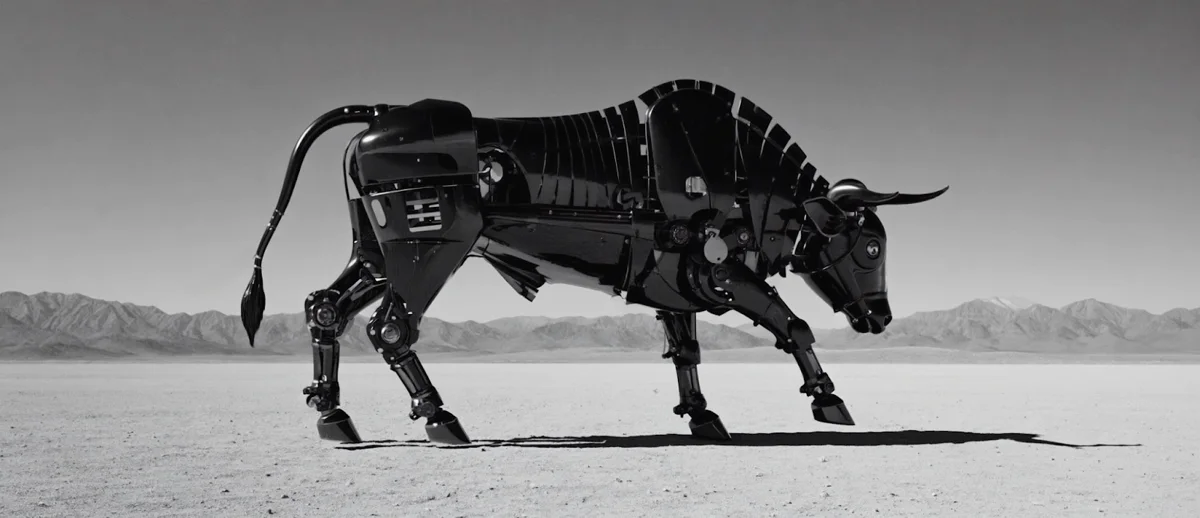
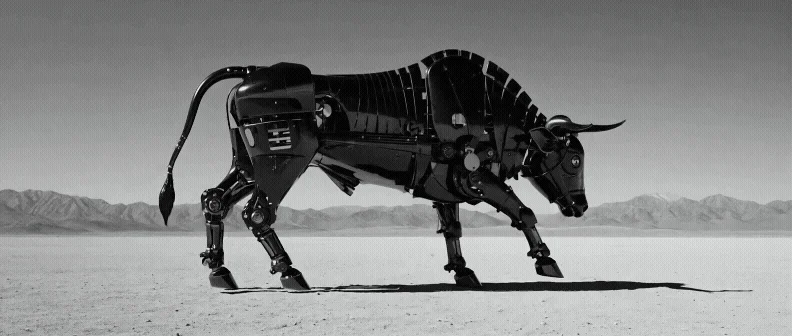
Build the Prompt One Element at a Time (Runway Gen-4)

Mechanical bull
Build the Prompt One Element at a Time (Runway Gen-4): Mechanical bull
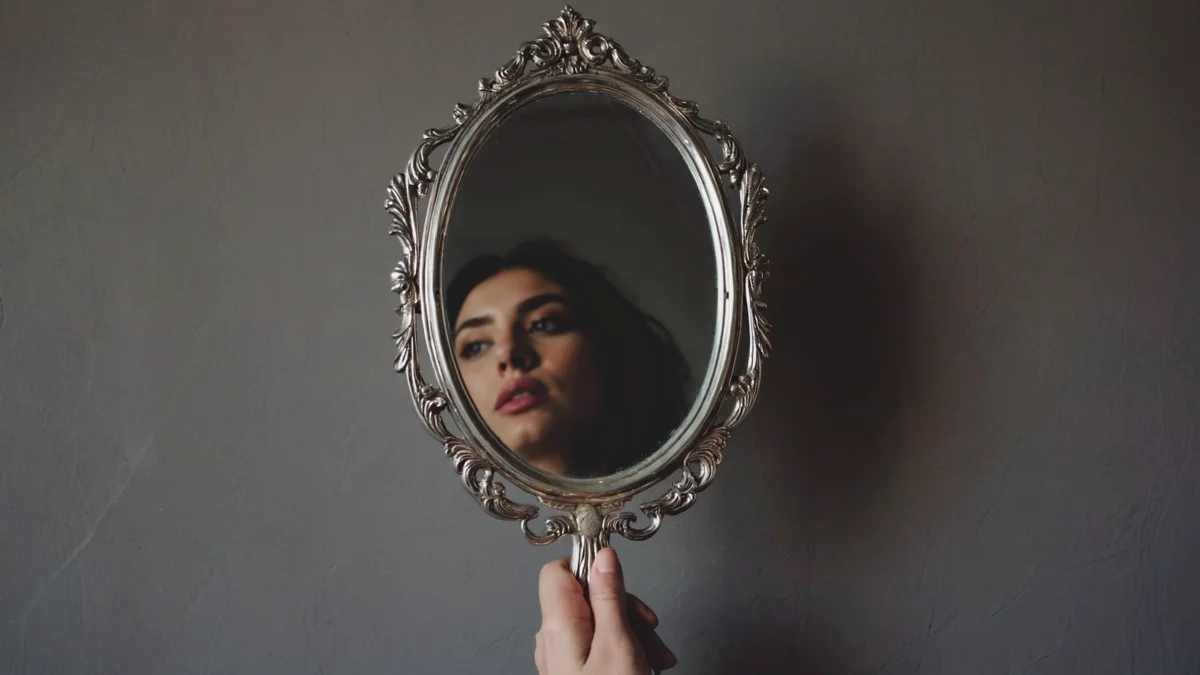
Mirror portrait
Build the Prompt One Element at a Time (Runway Gen-4): Mirror portrait
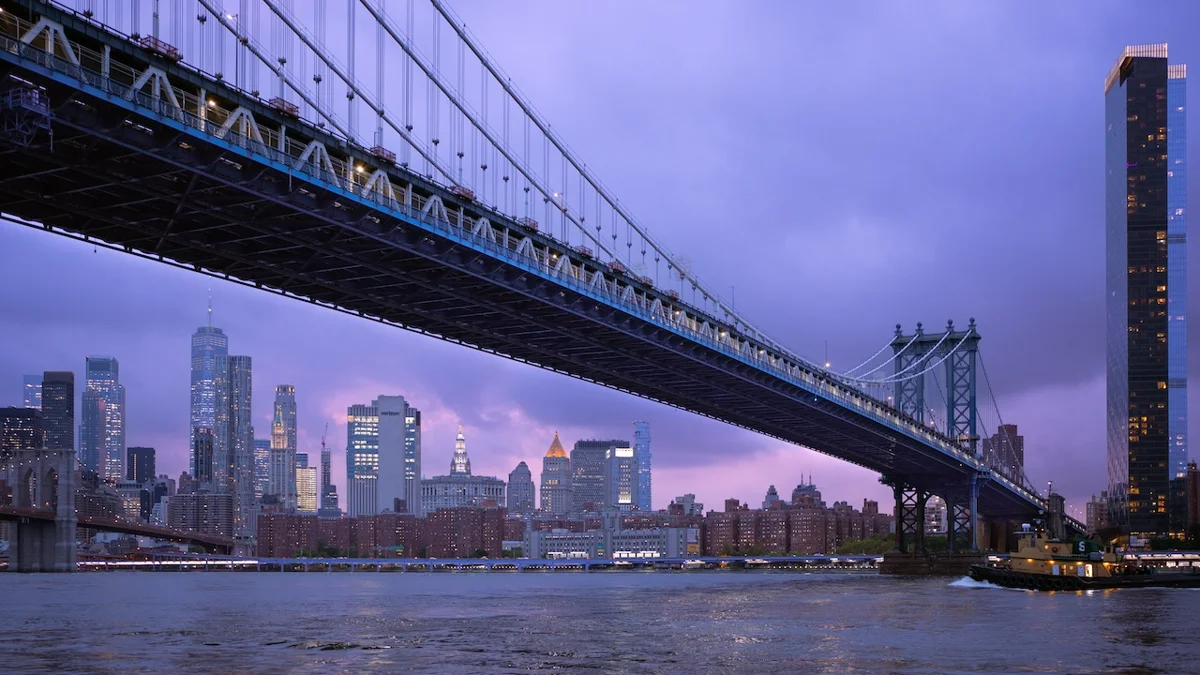
Bridge at dusk
Build the Prompt One Element at a Time (Runway Gen-4): Bridge at dusk
Pictures: Runway (help.runwayml.com)
Before

The mechanical bull runs.

After · new words marked

a handheld camera tracks the mechanical bull as it runs across the desert. the movement disturbs dust that trails behind the mechanical creature. cinematic live-action.

What happened

Guide's full-ingredients example; layered build lets you isolate each element's effect.

Video prompting · Technique 1 of 13

Build the Prompt One Element at a Time (Runway Gen-4)

Start with only the essential motion, then add subject motion, camera motion, scene motion, style, one at a time.

When to use it

Every Gen-4 session; troubleshooting which change helped / hurt.

Sources

Positive Phrasing Only (Runway Gen-4)

Describe what should happen; negative phrasing is not supported and may produce unpredictable / opposite results.

Before

No camera movement. The camera doesn't move. NO MOVEMENT

After · new words marked

Locked camera. The camera remains still.

What happened

Guide's ❌/✅ pair verbatim.

Video prompting · Technique 2 of 13

Positive Phrasing Only (Runway Gen-4)

Describe what should happen; negative phrasing is not supported and may produce unpredictable / opposite results.

When to use it

Always - never use 'no / don't / NO MOVEMENT'.

Sources

Describe Motion, Not the Input Image (Runway Gen-4)

The image already sets subject / composition / colour / lighting / style; re-describing it in detail can reduce motion or cause unexpected results.

Before

The tall man with black hair wearing a blue business suit and red tie reaches out his hand for a handshake

After · new words marked

The man extends his arm to shake hands, then nods politely.

What happened

Guide's ❌/✅ pair verbatim.

Video prompting · Technique 3 of 13

Describe Motion, Not the Input Image (Runway Gen-4)

The image already sets subject / composition / colour / lighting / style; re-describing it in detail can reduce motion or cause unexpected results.

When to use it

All image-to-video prompts.

Sources

One Scene Per Clip (Runway Gen-4)

A 5/10-sec clip = one scene; dictating each second / multiple scene changes, actions or style shifts gives unintended results.

Before

a cat transforms into a dragon while jumping through a forest that changes seasons with each leap. The camera spins 360 degrees and zooms underwater where the dragon becomes a submarine in a neon cityscape.

After · new words marked

a cat transforms into a dragon while running through a forest.

What happened

Guide's ❌/✅ pair verbatim.

Video prompting · Technique 4 of 13

One Scene Per Clip (Runway Gen-4)

A 5/10-sec clip = one scene; dictating each second / multiple scene changes, actions or style shifts gives unintended results.

When to use it

Any multi-beat idea - split it into separate clips.

Sources

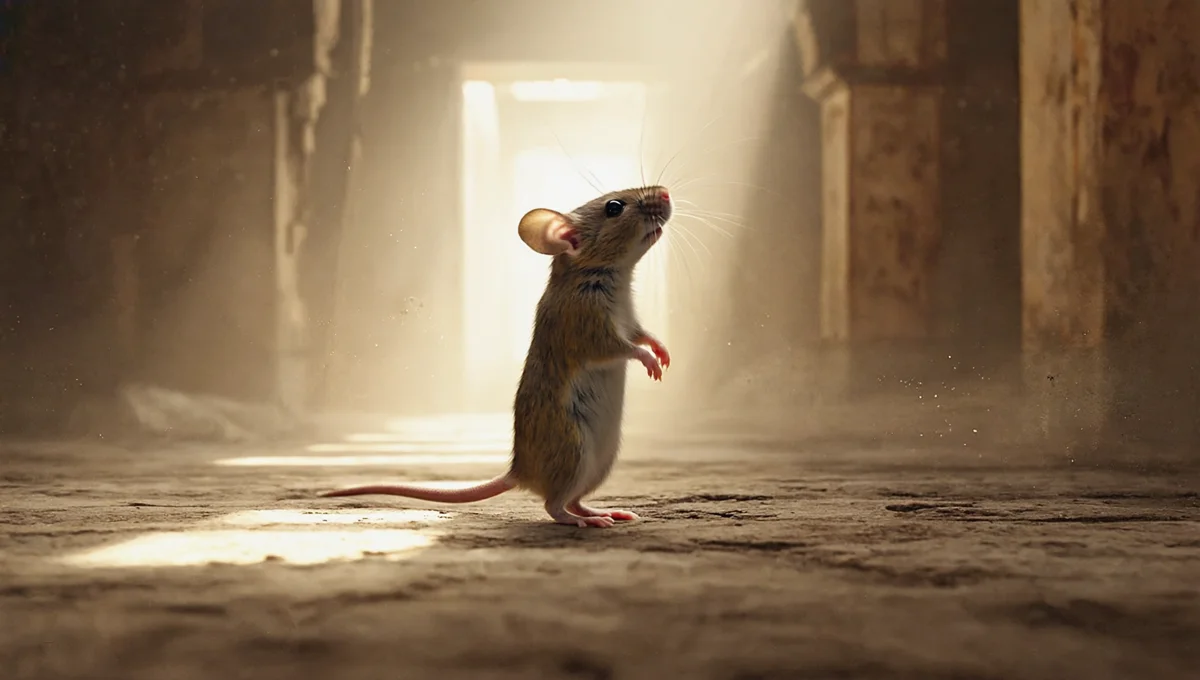
Camera Motion Terms (Runway Gen-4.5)

Camera Motion Terms (Runway Gen-4.5): example
Pictures: Runway (help.runwayml.com)
Before

The mouse runs away.

After · new words marked

the handheld camera tracks the mouse as it scurries away.

What happened

Output GIF on the guide page. Full camera-term list (macro, close-up, wide, aerial, POV, pan, tilt, dolly, push in, pull back, truck, tracking, pedestal, crane, orbit) is in the Camera Terms guide.

Video prompting · Technique 5 of 13

Camera Motion Terms (Runway Gen-4.5)

Name movement style (locked, handheld, dolly, pan, etc.), tracking vs independent movement, focus shifts.

When to use it

Directing the shot, not just the subject.

Sources

Text-to-Video Formula (Runway Gen-4.5)

[Camera] shot of [a subject/object] [action] in [environment]. [Supporting component descriptions] - visual + motion are the two essential elements.

Before

A raccoon stealing garbage.

After · new words marked

A raccoon in a plain room in zero gravity trying to steal the garbage from a silver trash can. The garbage floats out in zero gravity. Handheld documentary film style. Natural camera shake. Raw indie film aesthetic.

What happened

Guide's headline example. Advanced technique: timestamp prompting - assign actions to timed segments in one generation.

Video prompting · Technique 6 of 13

Text-to-Video Formula (Runway Gen-4.5)

[Camera] shot of [a subject/object] [action] in [environment]. [Supporting component descriptions] - visual + motion are the two essential elements.

When to use it

Text-only generation (no input image), Gen-4.5, 2-10 sec.

Sources

Veo Prompt Anatomy

Subject + Action + Scene/Context + Camera angle + Camera movement + Lens/optical effects + Visual style & aesthetics + Temporal elements + Audio + Cinematic terms + Negative prompts. You don't need all elements in every prompt.

Before

a woman

After · new words marked

A hyper-realistic, cinematic portrait of a wise, androgynous shaman... draped in ceremonial robes woven from dark moss and shimmering, metallic fiber-optic threads. In one hand, they hold a gnarled wooden staff...

What happened

Guide's multi-subject example (shaman + mechanical owl).

Video prompting · Technique 7 of 13

Veo Prompt Anatomy

Subject + Action + Scene/Context + Camera angle + Camera movement + Lens/optical effects + Visual style & aesthetics + Temporal elements + Audio + Cinematic terms + Negative prompts. You don't need all elements in every prompt.

When to use it

Every Veo prompt: start from this structure.

Sources

Veo Five-Part Formula (Veo 3.1)

[Cinematography] + [Subject] + [Action] + [Context] + [Style & Ambiance] - structured prompt yields consistent, high-quality results.

Before

A tired worker at a computer.

After · new words marked

Medium shot, a tired corporate worker, rubbing his temples in exhaustion, in front of a bulky 1980s computer in a cluttered office late at night. The scene is lit by the harsh fluorescent overhead lights and the green glow of the monochrome monitor. Retro aesthetic, shot as if on 1980s color film, slightly grainy.

What happened

Blog's headline example (Veo 3.1, 2025-10-16).

Video prompting · Technique 8 of 13

Veo Five-Part Formula (Veo 3.1)

[Cinematography] + [Subject] + [Action] + [Context] + [Style & Ambiance] - structured prompt yields consistent, high-quality results.

When to use it

Every Veo 3.1 prompt.

Sources

Veo Negative Prompts - Describe, Don't Instruct

Veo Negative Prompts - Describe, Don't Instruct: Without the negative promptWithout the negative prompt
Veo Negative Prompts - Describe, Don't Instruct: With it: no cityWith it: no city
Pictures: Google Cloud (cloud.google.com)
Before

Generate a short, stylized animation of a large, solitary oak tree with leaves blowing vigorously in a strong wind...

After · new words marked

Same prompt + negative prompt: urban background, man-made structures, dark, stormy, or threatening atmosphere.

What happened

The guide shows a before and after pair: a tree with, then without, an urban background. Google's Veo 3.1 post phrases it as a description instead: 'a desolate landscape with no buildings or roads'.

Video prompting · Technique 9 of 13

Veo Negative Prompts - Describe, Don't Instruct

Don't use 'no / don't' ('no walls'); instead list what you don't want: 'wall, frame'.

When to use it

Excluding unwanted elements.

Sources

Veo Timestamp Prompting (Veo 3.1)

Assign actions to timed segments [00:00-00:02] etc. to direct a complete multi-shot sequence with precise pacing in one generation.

Before

[one continuous action for 8 seconds]

After · new words marked

[00:00-00:02] Medium shot from behind a young female explorer... pushes aside a large jungle vine to reveal a hidden path. [00:02-00:04] Reverse shot of the explorer's freckled face, her expression filled with awe... SFX: The rustle of dense leaves, distant exotic bird calls. [00:04-00:06] Tracking shot following the explorer... [00:06-00:08] Wide, high-angle crane shot, revealing the lone explorer standing small in the center of the vast, forgotten temple complex.

What happened

Full 8-sec example verbatim from the blog; note SFX + Emotion labels inside timestamps.

Video prompting · Technique 10 of 13

Veo Timestamp Prompting (Veo 3.1)

Assign actions to timed segments [00:00-00:02] etc. to direct a complete multi-shot sequence with precise pacing in one generation.

When to use it

Multi-shot sequence in one 8-sec clip.

Sources

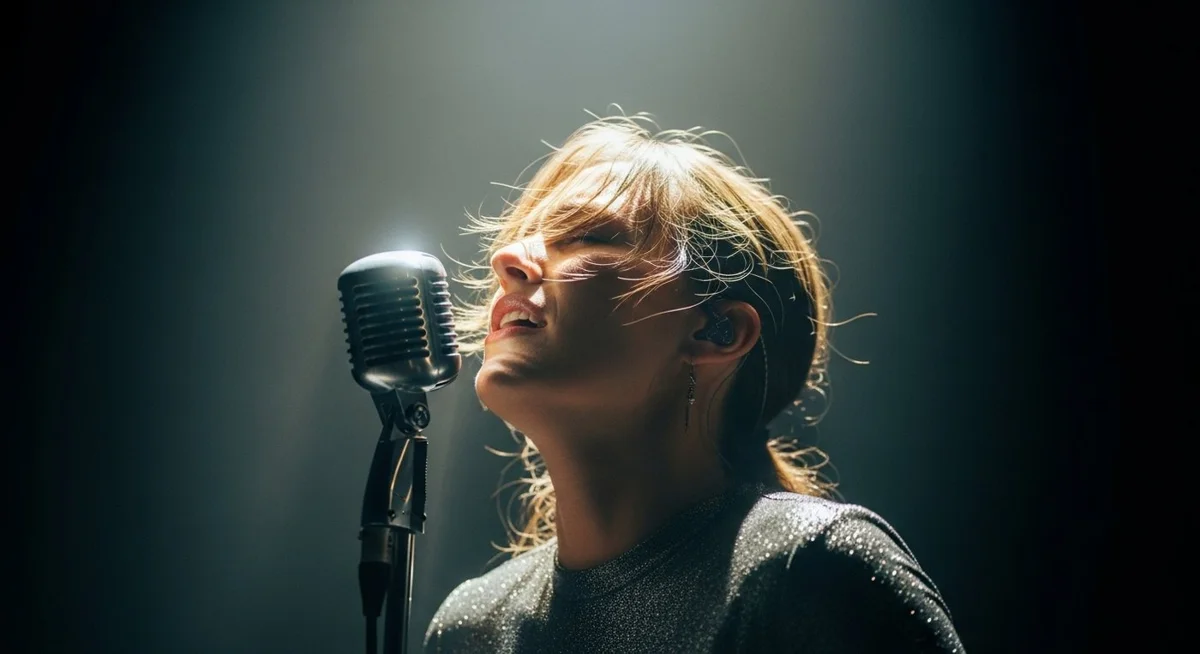
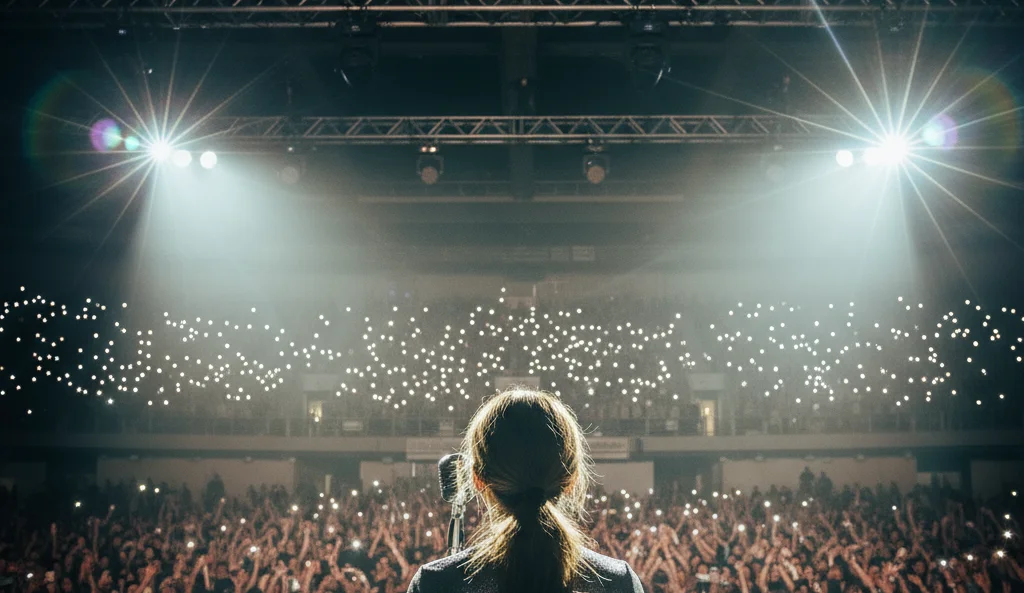
Veo First and Last Frame Transition (Veo 3.1)

Veo First and Last Frame Transition (Veo 3.1): First frameFirst frame
Veo First and Last Frame Transition (Veo 3.1): Last frameLast frame
Pictures: Google Cloud (cloud.google.com)
Before

Animate from this image to that image.

After · new words marked

Start image: Medium shot of a female pop star singing passionately into a vintage microphone... End image: POV shot from behind the singer on stage, looking out at a large, cheering crowd. Veo prompt: The camera performs a smooth 180-degree arc shot, starting with the front-facing view of the singer and circling around her to seamlessly end on the POV shot from behind her on stage. The singer sings 'when you look me in the eyes, I can see a million stars.'

What happened

Controlled 180-degree arc between two POVs, with audio.

Video prompting · Technique 11 of 13

Veo First and Last Frame Transition (Veo 3.1)

Generate a start frame + end frame in Gemini 2.5 Flash Image, then Veo animates the transition between them with audio.

When to use it

Controlled camera move / transformation between two POVs.

Sources

Veo Audio in the Prompt

Use separate sentences for audio; SFX, ambient noise, dialogue. Audio guides visuals, action, pacing, mood. Supported in Veo 3.

Before

A man talks in a room.

After · new words marked

A medium shot in a dimly lit interrogation room. The seasoned detective says: Your story has holes. The nervous informant, sweating under a single bare bulb, replies: I'm telling you everything I know. The only other sounds are the slow, rhythmic ticking of a wall clock and the faint sound of rain against the window

What happened

Guide: 'Clearly specify if you want audio.'

Video prompting · Technique 12 of 13

Veo Audio in the Prompt

Use separate sentences for audio; SFX, ambient noise, dialogue. Audio guides visuals, action, pacing, mood. Supported in Veo 3.

When to use it

Veo 3 audio scenes; dialogue / soundscape.

Sources

Veo Character Description - Specific Detail

More detail = more specific results; give appearance, voice, action, dialogue in one shot.

Before

a brown-haired woman

After · new words marked

A woman in her twenties with wavy brown hair and light freckles / A medium shot frames an old sailor, his knitted blue sailor hat casting a shadow over his eyes, a thick grey beard obscuring his chin. He holds his pipe in one hand, gesturing with it towards the churning, grey sea... 'This ocean, it's a force, a wild, untamed might.'

What happened

DeepMind Veo 3 prompt guide example.

Video prompting · Technique 13 of 13

Veo Character Description - Specific Detail

More detail = more specific results; give appearance, voice, action, dialogue in one shot.

When to use it

Character-led scenes.

Sources